Categories
Internal

Offline mrftools Reconstructions via Docker

This post walks through running an mrftools offline MR Fingerprinting (MRF) reconstruction end-to-end, entirely in Docker, using two repositories — python-ismrmrd-server (reconstruction server) and python-ismrmrd-client (data converter + streaming client) — plus a sample raw-data file provided separately (it’s not in either repo).

The workflow is the same for every mrftools recon — prostate, abdomen, brain, etc. Only four things change between them. This guide uses the prostate case as the worked example and then shows exactly what to swap for others.

  • Worked example dataset: meas_MID00758_FID33521_mrftools_prostate_yong.dat
  • Worked example recon: mrftools_prostate_threaded (threaded, slice-by-slice)
mrftools offline reconstruction Docker workflow
The mrftools offline reconstruction workflow: convert → reconstruct → post-process, all in Docker.

The pipeline:

 .dat  ──(siemens_to_ismrmrd)──►  .h5 (MRD raw)  ──(client → server recon)──►  output .h5 (T1/T2/M0 maps)  ──(h5tomat)──►  .mat

This was run and verified end-to-end; the prostate maps below match the project’s known-good reference for this case to within floating-point rounding (correlation ≈ 0.99999999).

Reconstructed T1, T2, and M0 maps
Verified T1 / T2 / M0 parameter maps (middle slice) from the prostate example.

What you need

You have two git repositories and a sample data file. Put the repos somewhere together and keep your data somewhere of your choosing:

~/mrf/                          # any working directory
├── python-ismrmrd-server/      # repo 1 — the recon server
└── python-ismrmrd-client/      # repo 2 — the converter + client

~/mrf-data/                     # any data directory (provided separately)
└── meas_MID00758_FID33521_mrftools_prostate_yong.dat

To keep the commands copy-pasteable, set two environment variables — your repo root and your data directory:

export REPOS=~/mrf            # holds python-ismrmrd-server and python-ismrmrd-client
export DATA=~/mrf-data        # holds the .dat, and will receive the .h5 outputs

Raw data is always mounted in, never built into an image. The client’s .dockerignore deliberately excludes data, so you pass your .dat/.h5 files into the containers at run time with -v "$DATA":/data. Nothing about your data needs to live inside either repo.


Prerequisites

  • Docker (with docker compose v2). Verified with Docker 29.5.
  • NVIDIA GPU + nvidia-container-toolkit strongly recommended. The recon uses a NUFFT on the GPU (torch + torchkbnufft). It falls back to CPU automatically, but a full multi-slice case takes seconds on GPU vs. many minutes on CPU.
  • ~10 GB free RAM and ~5 GB disk in $DATA for the intermediate MRD .h5 (a typical input .dat is ~2 GB; the converted MRD is similar).
  • The server image is large (~29 GB — it’s based on the NVIDIA PyTorch container).

Step 1 — Build the client image (converter + streaming client)

The client image bundles siemens_to_ismrmrd (Siemens .dat → MRD .h5) and the streaming client.py. It’s the same image for every recon.

docker build -t mrd-client "$REPOS/python-ismrmrd-client"

This produces a small (~650 MB) image named mrd-client.


Step 2 — Build the reconstruction server image

The server image contains the mrftools reconstruction modules and PyTorch. One image serves all recon configs — you select which one at run time in Step 5.

cd "$REPOS/python-ismrmrd-server"
docker compose build

This builds the image tagged python-ismrmrd-server-mrf-recon from docker/Dockerfile, using the build settings in docker-compose.yml. The build is long the first time (it compiles ISMRMRD + siemens_to_ismrmrd and pulls the NVIDIA PyTorch base).

GPU note: the provided docker-compose.yml does not request a GPU. To run the recon on the GPU, start the server with the manual docker run command in Step 4, Option B (which adds --gpus all). docker compose up works too but runs on CPU.


Step 3 — Convert the Siemens .dat to MRD .h5

⚠️ The custom parameter map is required. mrftools MRF sequences store the image matrix size in vendor-specific header fields. With the default siemens_to_ismrmrd stylesheet, reconSpace.matrixSize.x comes out as 0 and the recon crashes with ZeroDivisionError: float division by zero (the NUFFT grid size becomes 0×0). You must pass the mrftools parameter map (-m) and stylesheet (-x), which are baked into the client image at /opt/code/python-ismrmrd-client/.

Run the converter inside the client container. Your data directory is mounted at /data, so the input .dat and the output .h5 both live in $DATA:

docker run --rm \
  -v "$DATA":/data \
  mrd-client \
  siemens_to_ismrmrd \
    -f /data/meas_MID00758_FID33521_mrftools_prostate_yong.dat \
    -z 2 \
    --skipSyncData \
    -m /opt/code/python-ismrmrd-client/mrftools_parameter_map.xml \
    -x /opt/code/python-ismrmrd-client/mrftools_brain_prod.xsl \
    -o /data/meas_758.h5

Flags:

FlagMeaning
-finput Siemens .dat file
-z 2convert measurement 2 of this multi-RAID file (measurement 1 is calibration/AdjCoilSens; the MRF acquisition is the last measurement)
--skipSyncDataskip PMU/waveform (ECG/resp) data — required for Siemens XA60 data to avoid a PMU-parsing bug in siemens_to_ismrmrd v1.2.6
-m … mrftools_parameter_map.xmlcustom Siemens parameter map (populates the matrix size)
-x … mrftools_brain_prod.xslcustom stylesheet matching that parameter map (despite the “brain” name, this is the shared mrftools stylesheet)
-ooutput MRD .h5

You’ll see wrote scan : N progress, then warnings about “additional bytes at the end of file” — these are benign for this file.

Sanity-check the header (the recon needs a non-zero matrix size):

docker run --rm -v "$DATA":/data mrd-client python -c "
import h5py, ismrmrd
hdr = ismrmrd.xsd.CreateFromDocument(h5py.File('/data/meas_758.h5','r')['dataset/xml'][0])
e = hdr.encoding[0]
print('encodedSpace:', e.encodedSpace.matrixSize.x, e.encodedSpace.matrixSize.y, e.encodedSpace.matrixSize.z)
print('reconSpace: ', e.reconSpace.matrixSize.x,  e.reconSpace.matrixSize.y,  e.reconSpace.matrixSize.z)
"

Expected (good) output for the prostate case:

encodedSpace: 256 256 1
reconSpace:  256 512 1

If reconSpace shows 0 0 1, the custom map/stylesheet were not applied — re-check Step 3.


Step 4 — Start the reconstruction server

The server listens on TCP port 9002. On first run it auto-downloads the MRF dictionary and spiral trajectories for the requested recon from Azure and caches them in Docker volumes (dictionary-data, b1-data, debug-data), so subsequent runs are fast. The Azure connection string is baked into the image. The same server handles every recon config; you choose the config on the client side in Step 5.

Behavior is configured through environment variables in python-ismrmrd-server/.env (coil count, T1/T2 ranges, B1 correction, iteration count, etc.).

Option A — docker compose up (simplest, CPU)

cd "$REPOS/python-ismrmrd-server"
docker compose up

Because network_mode: host is set, port 9002 is exposed directly on your host. This runs the recon on CPU (the compose file requests no GPU).

Option B — manual docker run (recommended — enables GPU)

In a separate terminal, start the server with GPU access and the cache volumes mounted. (Override the entrypoint so we can pass -v for verbose logging.)

cd "$REPOS/python-ismrmrd-server"

docker run -d --name mrf-server \
  --gpus all \
  --network host \
  --env-file .env \
  -v python-ismrmrd-server_dictionary-data:/usr/share/dictionary-data \
  -v python-ismrmrd-server_b1-data:/usr/share/b1-data \
  -v python-ismrmrd-server_debug-data:/usr/share/debug \
  --entrypoint python3 \
  python-ismrmrd-server-mrf-recon \
  /opt/code/python-ismrmrd-server/main.py -v -H=0.0.0.0 -p=9002

Confirm it is listening:

docker logs mrf-server --tail 5
# ... Starting server and listening for data at 0.0.0.0:9002
# ... Serving...

The volume names python-ismrmrd-server_* are the ones docker compose creates. If you never ran compose, Docker will create fresh empty volumes here and the first recon will download the dictionary from Azure (~170 MB for prostate).


Step 5 — Run the reconstruction (client → server)

With the server running, stream the converted MRD file to it. The -c <config> flag selects the recon module by name (the server imports the matching <config>.py). For the prostate example that is mrftools_prostate_threaded.

docker run --rm \
  --network host \
  -v "$DATA":/data \
  mrd-client \
  python client.py \
    -a localhost -p 9002 \
    -c mrftools_prostate_threaded \
    -o /data/output_758.h5 \
    /data/meas_758.h5

Flags: -a/-p server address/port, -c server-side config (recon module) name, -o output file, last positional arg is the input MRD file.

The client streams ~13,800 acquisitions; the server reconstructs slice-by-slice and streams images back. On a successful run the client prints a summary like:

Sent 13824 acquisitions  |  Received     0 acquisitions
Sent     0 images        |  Received    24 images
Session complete

24 images = 8 slices × 3 parameter maps (T1, T2, M0). (Image and slice counts vary by dataset/recon.) Watch the server side with docker logs -f mrf-server to see per-slice progress. The result is $DATA/output_758.h5.


Step 6 — Convert the output to MATLAB .mat (optional)

h5tomat.py (shipped in the client repo) repackages the parameter maps into a MATLAB-friendly .mat:

docker run --rm \
  -v "$DATA":/data \
  mrd-client \
  python h5tomat.py /data/output_758.h5

Produces $DATA/output_758.mat with datasets t1big_all, t2big_all, m0big_all (each [n_slices, rows, cols] float64), loadable in MATLAB via load('output_758.mat').

If your mrd-client image predates h5tomat.py being added to the Dockerfile, mount the repo’s copy in: -v "$REPOS/python-ismrmrd-client/h5tomat.py":/opt/code/python-ismrmrd-client/h5tomat.py:ro


Step 7 — View the results (on the host, not Docker)

The viewer scripts in the client repo use a GUI and run on the host. They need matplotlib, numpy, h5py (and scipy for .mat):

cd "$REPOS/python-ismrmrd-client"
python view_images.py "$DATA/output_758.h5"     # MRD image viewer
python view_maps.py   "$DATA/output_758.mat"    # parameter-map viewer

view_images.py controls: ←/→ timepoint, ↑/↓ slice, +/- channel, r color range, q quit. The T1/T2/M0 montage near the top of this post was produced from output_758.h5 this way.


Adapting to other mrftools reconstructions

The steps above are identical for every mrftools recon. To run a different case, change only these four things:

What changesWhereProstate exampleHow to find it
1. Input datasetStep 3 -f..._prostate_yong.datthe .dat for your anatomy (e.g. ..._abdomen_...dat)
2. Measurement numberStep 3 -z N-z 2the last measurement in the multi-RAID file (try -z 1, -z 2, … or -Z to dump all). Measurement 1 is usually calibration.
3. Recon config nameStep 5 -c <config>mrftools_prostate_threadedthe server-side module name for that recon (matches a <config>.py in the server repo)
4. Trajectory / FOV / dictionaryautomaticFOV 400, 256², spiralnothing to do — the recon reads FOV/matrix from the MRD header and picks the matching trajectory + dictionary itself

Everything else — the custom -m/-x conversion maps, --skipSyncData, the server launch, the dictionary/trajectory auto-download and caching, h5tomat.py, and the viewers — is shared.

The custom stylesheet is named mrftools_brain_prod.xsl for historical reasons but is the shared mrftools parameter stylesheet — use it for prostate, abdomen, brain, etc.


Adding a new reconstruction config to the server

A “config” is nothing more than a Python module in python-ismrmrd-server/ that exposes a process() function. When the client connects with -c <name>, the server runs importlib.import_module("<name>") and calls its process(). So adding a recon = dropping in a <name>.py file in the server repo. No registration, no edits to server.py.

1. Write the module

Create python-ismrmrd-server/myrecon.py. The minimal contract is a process() function that reads from the connection and sends images back. This example does a basic Cartesian FFT recon and is a good starting template:

import ismrmrd
import logging
import numpy as np
import numpy.fft as fft
import mrdhelper


def process(connection, config, metadata):
    logging.info("myrecon: starting (config='%s')", config)

    # Collect raw k-space acquisitions; ignore other message types.
    acqs = [item for item in connection if isinstance(item, ismrmrd.Acquisition)]
    if not acqs:
        connection.send_close()
        return
    logging.info("myrecon: received %d acquisitions", len(acqs))

    # Sort readouts into a Cartesian grid: [coils, ky, kx].
    ncoils = acqs[0].data.shape[0]
    nx = max(acq.data.shape[1] for acq in acqs)
    ny = max(acq.idx.kspace_encode_step_1 for acq in acqs) + 1
    kspace = np.zeros((ncoils, ny, nx), dtype=np.complex64)
    for acq in acqs:
        ky = acq.idx.kspace_encode_step_1
        kspace[:, ky, :acq.data.shape[1]] = acq.data

    # 2D inverse FFT + sum-of-squares coil combine, normalize to int16.
    img = fft.fftshift(fft.ifft2(fft.ifftshift(kspace, axes=(1, 2)), axes=(1, 2)), axes=(1, 2))
    img = np.sqrt(np.sum(np.abs(img) ** 2, axis=0))
    img = (img * (32767.0 / img.max())).astype(np.int16)

    # Wrap as an MRD image (copies orientation from the acquisition) and send it back.
    mrd_img = ismrmrd.Image.from_array(img, acquisition=acqs[0])
    mrd_img.image_index = 0
    connection.send_image(mrd_img)
    connection.send_close()

Notes:

  • The function must be named process and accept (connection, config, metadata). The server first tries to call it with an extra version= keyword and silently falls back to this 3-argument form, so the signature above is fine.
  • connection is an iterator of incoming MRD messages — filter for the types you want (ismrmrd.Acquisition for raw k-space, ismrmrd.Image for image input).
  • Send results with connection.send_image(...) and finish with connection.send_close().
  • invertcontrast.py and mrftools_prostate_threaded.py in the server repo are fuller references to copy from.

2. Test it without rebuilding (fast dev loop)

The server calls importlib.reload() on each connection, so if you mount the server repo as a volume, you can edit the module and re-run the client without restarting the server or rebuilding the image.

Start a dev server with the repo bind-mounted over the baked-in code:

cd "$REPOS/python-ismrmrd-server"

docker run -d --name mrf-server-dev \
  --gpus all --network host --env-file .env \
  -v "$(pwd)":/opt/code/python-ismrmrd-server \
  -v python-ismrmrd-server_dictionary-data:/usr/share/dictionary-data \
  --entrypoint python3 \
  python-ismrmrd-server-mrf-recon \
  /opt/code/python-ismrmrd-server/main.py -v -H=0.0.0.0 -p=9002

Send some MRD data through your new config (any converted .h5 in $DATA works):

docker run --rm --network host \
  -v "$DATA":/data \
  mrd-client \
  python client.py -a localhost -p 9002 -c myrecon \
    -o /data/myrecon_out.h5 /data/meas_758.h5

On success the client reports Received 1 images (or however many your process() sends) and the server log shows your logging.info lines. Edit myrecon.py, re-run the client — the change is picked up immediately, no restart needed. Watch the server with docker logs -f mrf-server-dev; any exception in process() appears there (and the client sees a BrokenPipeError).

3. Bake it into the image (permanent)

Once the module works, rebuild so it’s baked into the image (the Dockerfile’s COPY . /opt/code/python-ismrmrd-server picks up every .py in the repo — no Dockerfile edit needed):

cd "$REPOS/python-ismrmrd-server"
docker rm -f mrf-server-dev          # stop the dev server
docker compose build                 # rebake the image with myrecon.py inside

Now the production server (Step 4) serves -c myrecon with no volume mount.


Clean up

docker rm -f mrf-server          # if started via Option B
# or, if started via compose:
cd "$REPOS/python-ismrmrd-server" && docker compose down

# The ~2 GB intermediate MRD file can be deleted; outputs are small.
rm "$DATA/meas_758.h5"

Cached dictionary/trajectory data persists in the Docker volumes for fast future runs. Remove with docker volume rm if you want a clean slate.


Troubleshooting

SymptomCause / fix
ZeroDivisionError: float division by zero in the server, after Override Matrix Size: [0 0 N]The MRD header has matrixSize.x = 0. You converted without the custom -m/-x maps. Redo Step 3 with mrftools_parameter_map.xml + mrftools_brain_prod.xsl.
Unknown config '<name>'. Falling back to 'invertcontrast'The -c config name doesn’t match a recon module on the server. Check the module exists in the server repo and the spelling matches.
BrokenPipeError / Failed to send acquisition N on the clientThe server-side recon crashed mid-stream. Check docker logs mrf-server for the real traceback.
Recon is extremely slowRunning on CPU. Use Step 4 Option B with --gpus all, and verify with nvidia-smi -L.
AZ_CONNECTION_STRING not set in server logsThe dictionary download needs the Azure string. The image bakes it in; if you overrode the env, re-add it or pre-seed the dictionary-data volume.
Connection refused from the clientServer not up yet, or not on port 9002. Confirm docker logs mrf-server shows “Serving…” and both containers use --network host.
Converter warns about “additional bytes at the end of file”Benign for these datasets — conversion still succeeds.

Categories
Internal

Configuring IDEA for Debugging in Visual Studio 2017

Sorry, but you do not have permission to view this content.
Categories
Public

ISMRM 2023 Abstracts

Below are internally-hosted copies of the ISMRM 2023 abstract submissions from the Case MRI research group:

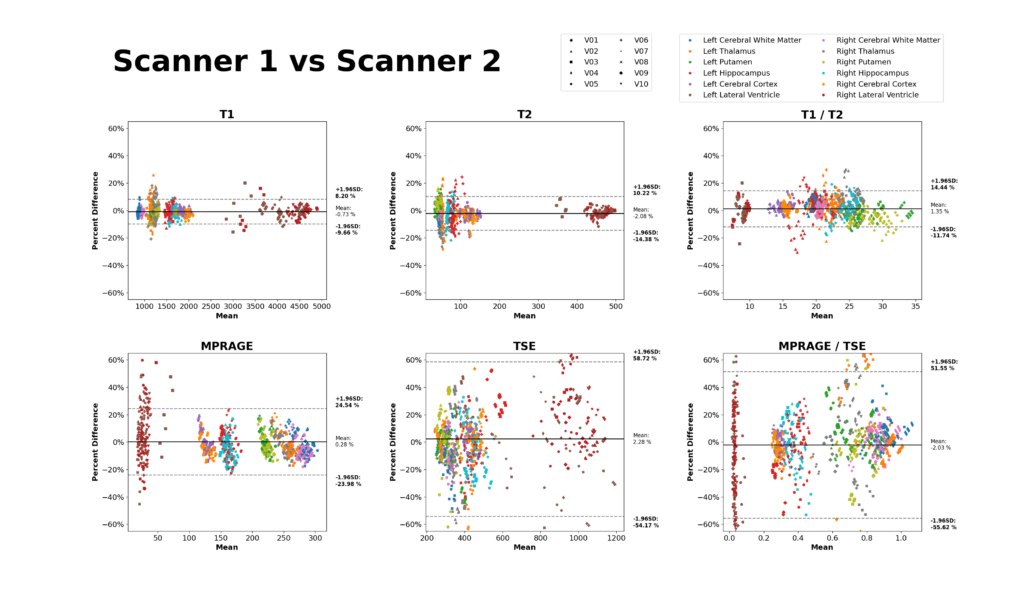
#3995: Quantifying 3D-MRF Reproducibility Across Subjects, Sessions, and Scanners Automatically Using MNI Atlases

Andrew Dupuis, Yong Chen, Dan Ma, Michael Hansen, Kelvin Chow, Mark Griswold, and Rasim Boyacioglu

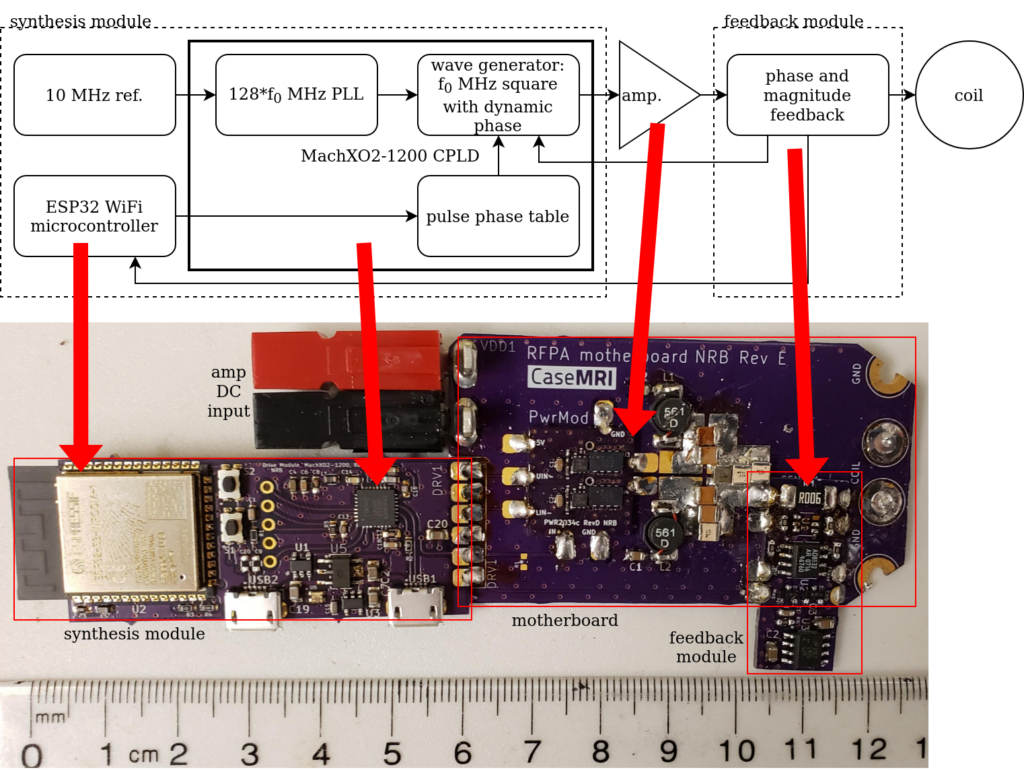
#5834: Digital Synthesis at the Coil in a WiFi-enabled Modular Switch Mode RFPA Platform for Gradient-Free Imaging

N. Reid Bolding, Christopher Vaughn, Aria Patel, Snow Lin, Andrew Dupuis, William A. Grissom, and Mark A. Griswold

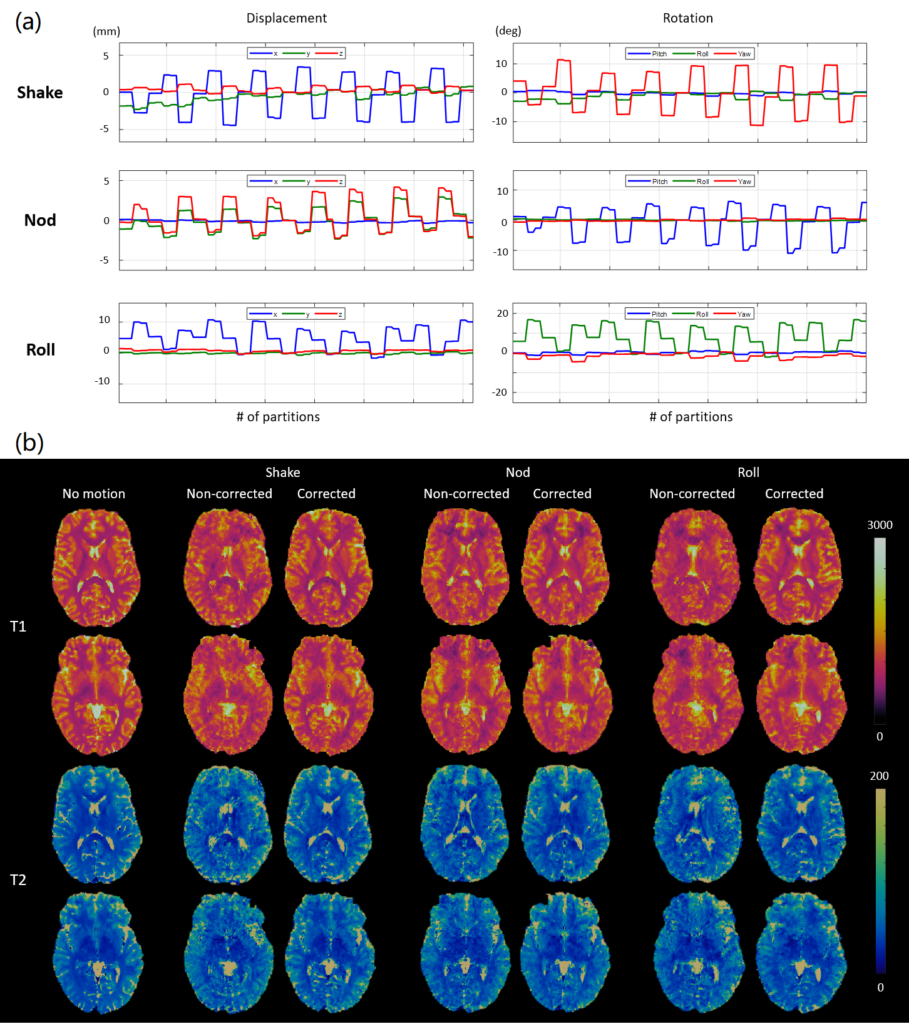
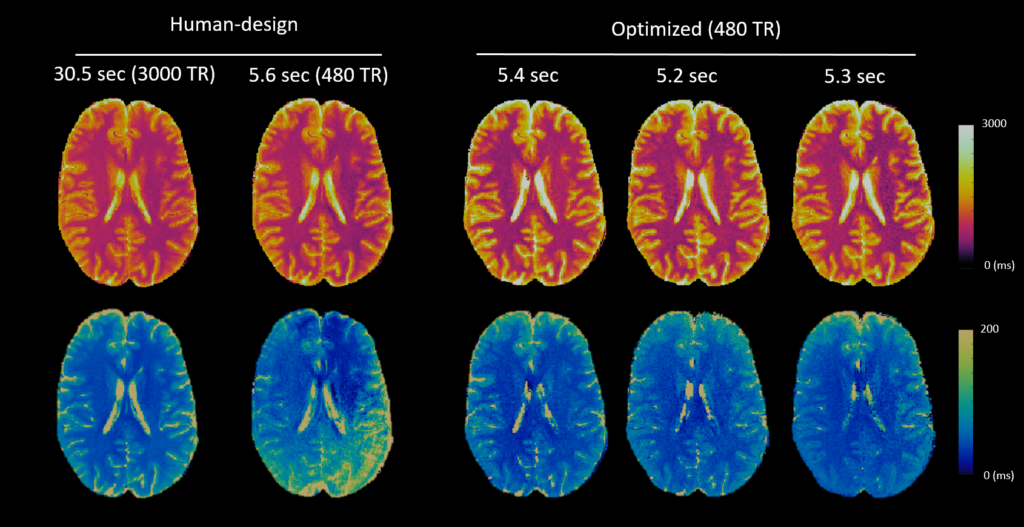
#7730: Fully Automated Online Reconstruction, Registration, and Analysis Pipeline for 3D Magnetic Resonance Fingerprinting

Andrew Dupuis, Rasim Boyacioglu, Yong Chen, Dan Ma, Michael Hansen, Kelvin Chow, Chaitra Badve, and Mark Griswold

Categories
Internal

Running Gadgetron Retroreconstructions on Azure Kubernetes

While online reconstructions using Gadgetron are always managed via FIRE on the scanner, offline retroreconstruction can be completed through either FIRE at the scanner or from a personal computer. Both approaches are covered below.

Retrorecons at the Scanner

Retrorecons can be run via a single click while at the scanner console, as long as the raw data from your scan session is still present on the Host machine’s local storage database. In order to run a reconstruction using the same settings used during the online reconstruction, open the “Job” window and select the raw dataset you’d like to reconstruct:

(add image/screenshot)

Click the “retroreconstruction” button on the right side of the dataset list entry, and allow the reconstruction to finish processing. Your images will be returned to the scanner console within the same subject registration entry as the initial scan, with the addition of an “RR” tag added to the scan name.

Retrorecons from Your Computer

In order to run a retroreconstruction from your computer, you will need the following software tools:

  • Azure CLI: Azure CLI client for authentication to the cluster
  • Kubectl: Kubernetes CLI client for interacting with the cluster

To run a reconstruction, you will need to provide an .mrd/.h5 dataset from the scan session. If you have a Siemens .dat raw data file, you will need to convert the .dat file into a .mrd/.h5 file using the siemens_to_ismrmrd tool and the appropriate .xsl stylesheet for your acquisition/reconstruction. The conversion tool is available within the Gadgetron conda environment or within most Gadgetron Docker images.

We’ll use the conda environment for our conversion as well as for our connection to the cluster. First, set up a gadgetron conda environment per the Gadgetron user guide. Then, activate the conda environment within the directory containing your .dat file and .xsl stylesheet and run the following command:

siemens_to_ismrmrd -Z -f {.dat file path} -x {.xsl stylesheet path} -o {output file path}

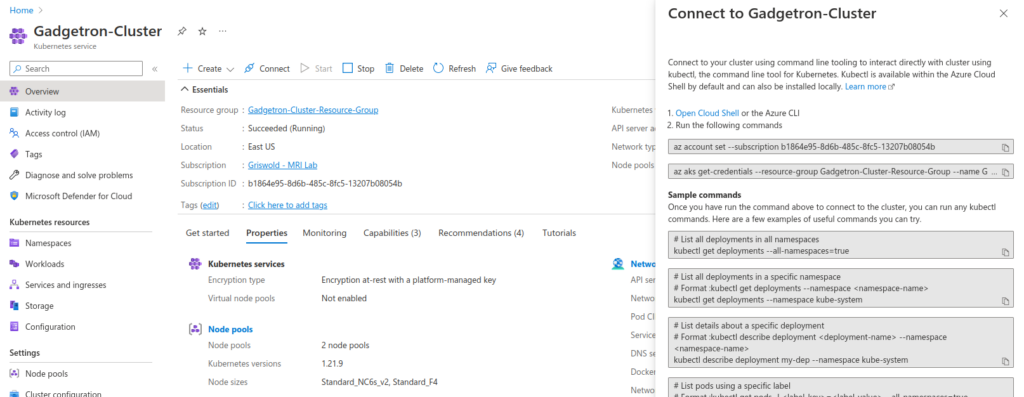
Once you have your .mrd/.h5 file prepared, open a new terminal and connect to your kubernetes cluster via the Authentication commands provided in Connect section of the cluster’s Azure portal:

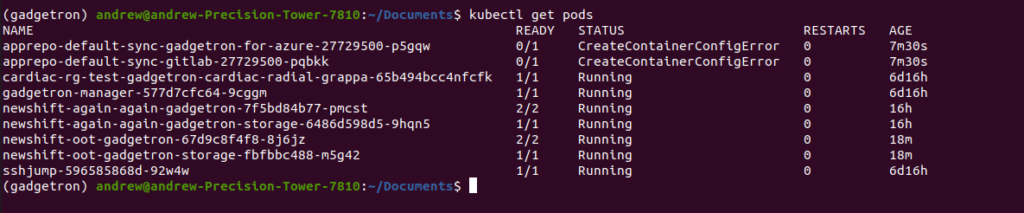
Once you are authenticated to the cluster, you can check for existing pods via:

kubectl get pods

I’ll be running my retrorecons on the “newshift-oot-gadgetron” installation instance. In order to run the reconstruction, we need to port-forward the SSH connection from the remote cluster to a local port on our machine using kubectl. The following command maps our local port 9002 to the remote port 9002 on the cluster pod instance:

kubectl port-forward svc/newshift-oot-gadgetron 9002:9002

We can now communicate with our remote Gadgetron instance. Within the conda environment we set up earlier, we can now run the Gadgetron ISMRMRD client to execute a reconstruction:

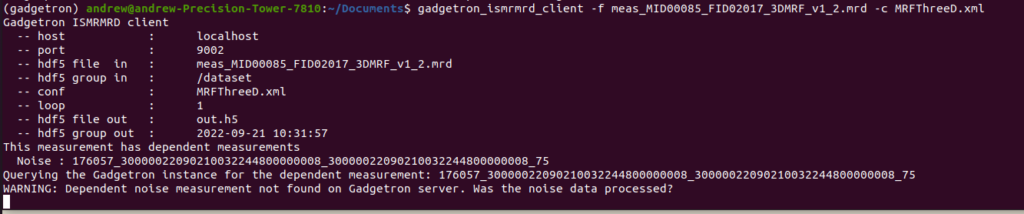
gadgetron_ismrmrd_client -f {.mrd dataset path} -c {Gadgetron pipeline XML name} -o {output path}

Start the reconstruction process and wait. Note that this may take a while depending on network speed, SSH capability, and dataset size:

In case your reconstruction fails or freezes, you can restart the Gadgetron pod via:

kubectl rollout restart deployment {deployment name}

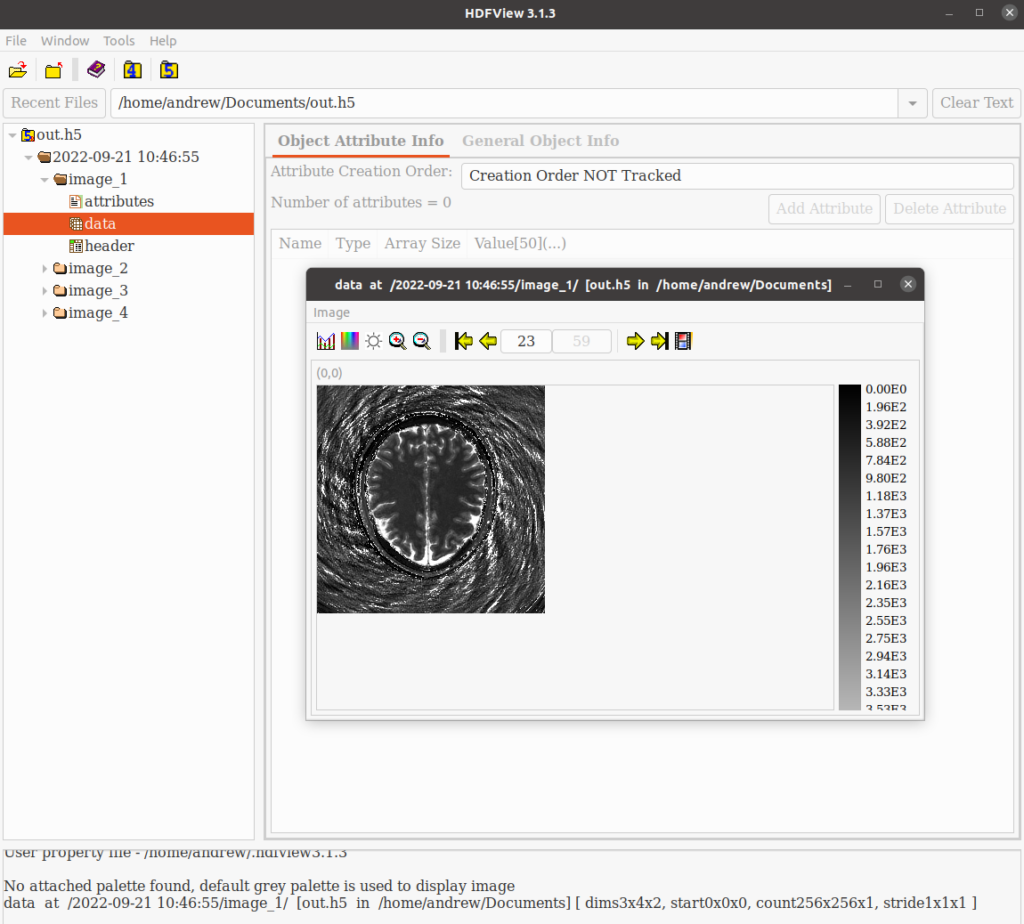
Once the reconstruction is complete, our reconstructed data will be in the output .mrd/.h5 file, and can be viewed in HDFView or Matlab:

Categories
Internal

Creating IDEA Development VMs in Azure

Sorry, but you do not have permission to view this content.
Categories
Public

Getting Started: Realtime-MRI-Visualization

The following is a basic introduction to installing and testing the CWRU-MRI Realtime-MRI-Visualization Github project described in this paper.

This project has two main elements: a Gadgetron-based reconstruction pipeline and a Unity-based visualization tool for the Microsoft Hololens 2. We’ll start by installing the application on the Hololens.

Hololens 2 Installation

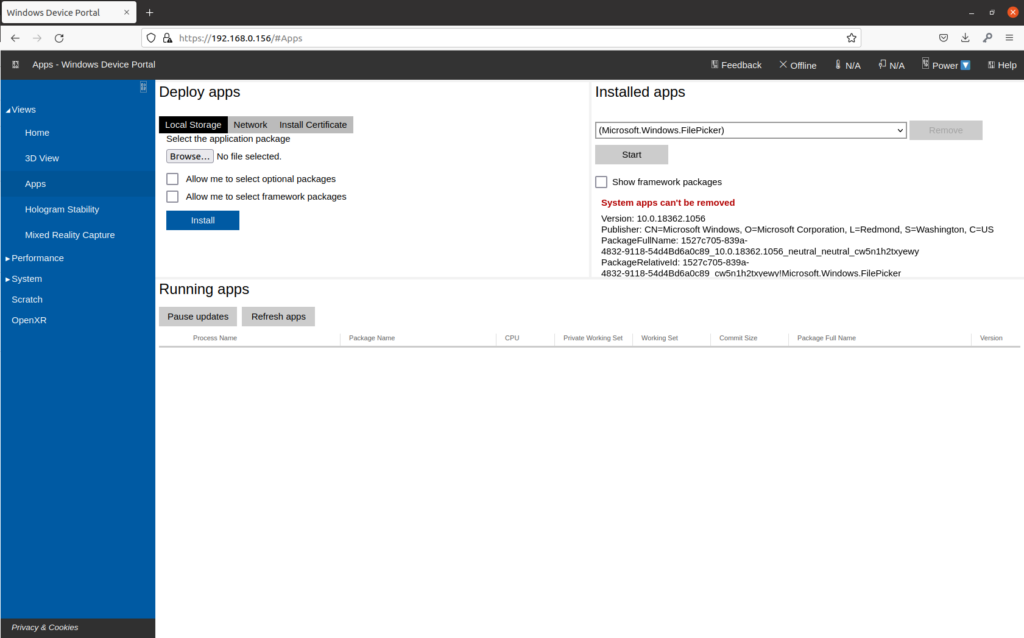
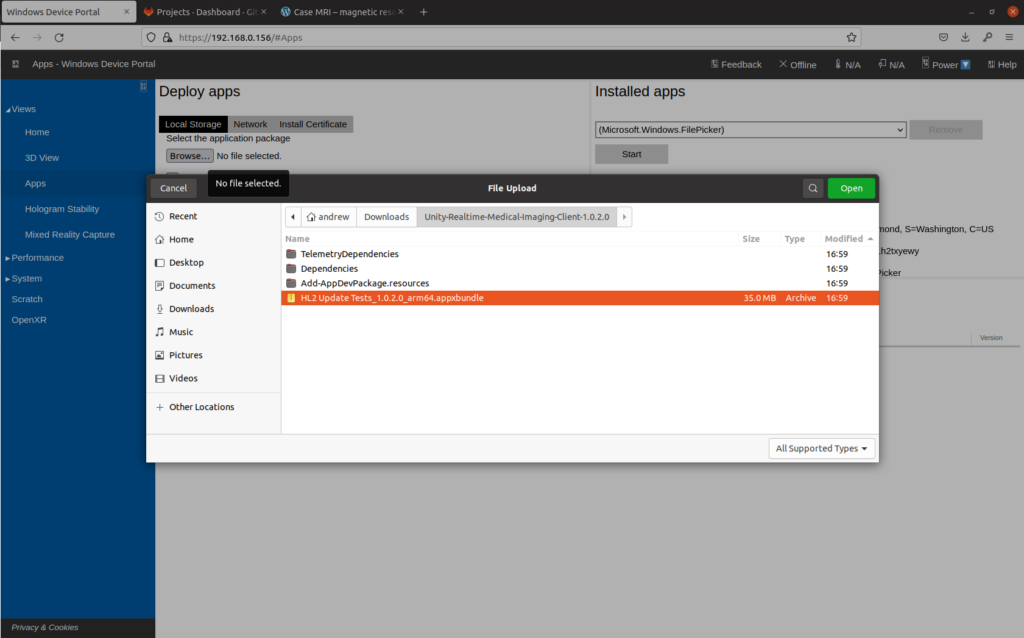
First, download the latest release of the Unity application from Github. You can also build the application from source if you so choose. Once you have downloaded and extracted the Unity release package, start by connecting to your Hololens 2 Device Portal through your computers browser. This will be hosted at the IP address of your device, but may require enabling developer mode in your settings. Navigate to the Views->Apps page. It should look something like this:

In order to install the application, click on “Local Storage” under Deploy Apps. Use the browse button to select the appxbundle inside the unzipped application folder:

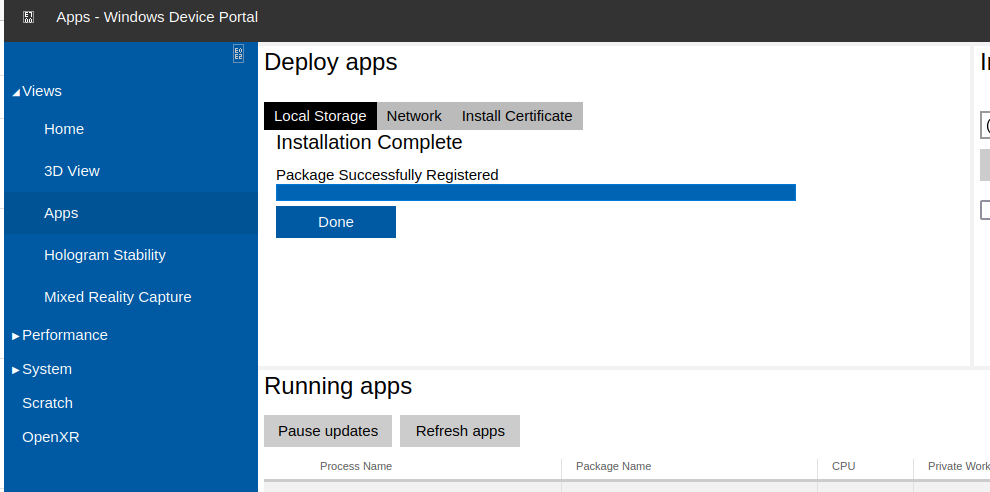
You can now click “Install” under the Deploy Apps section, and the installation will begin. You will eventually see “Package Registration Successful”, meaning the application is now installed:

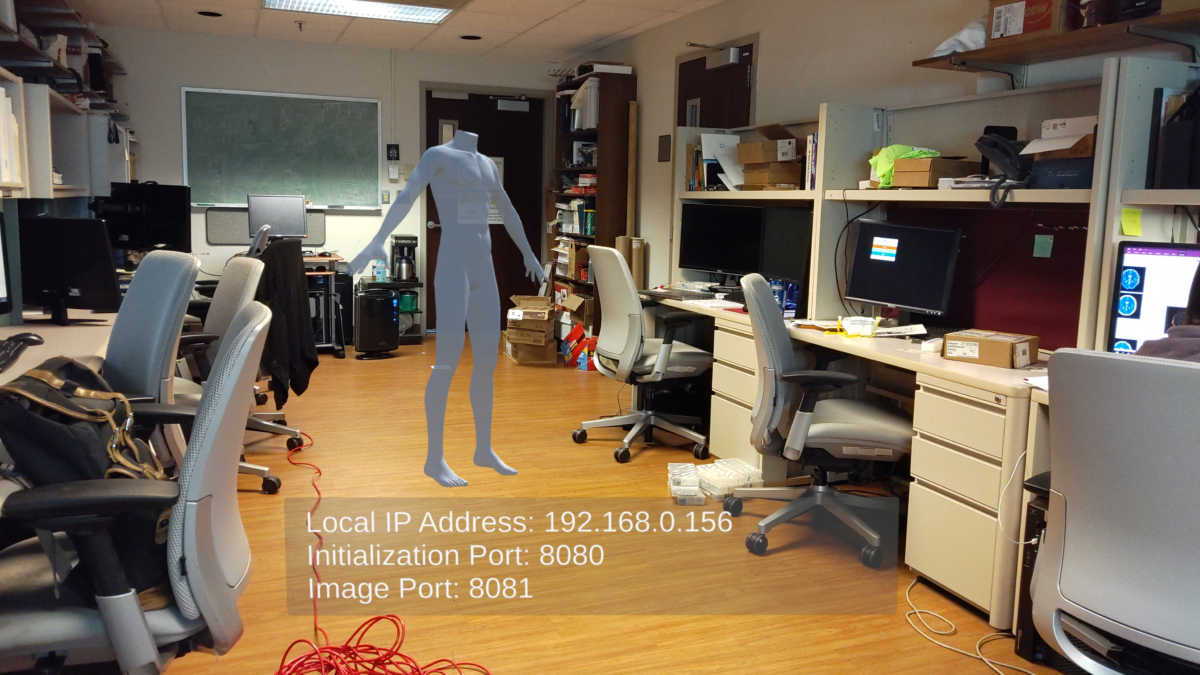
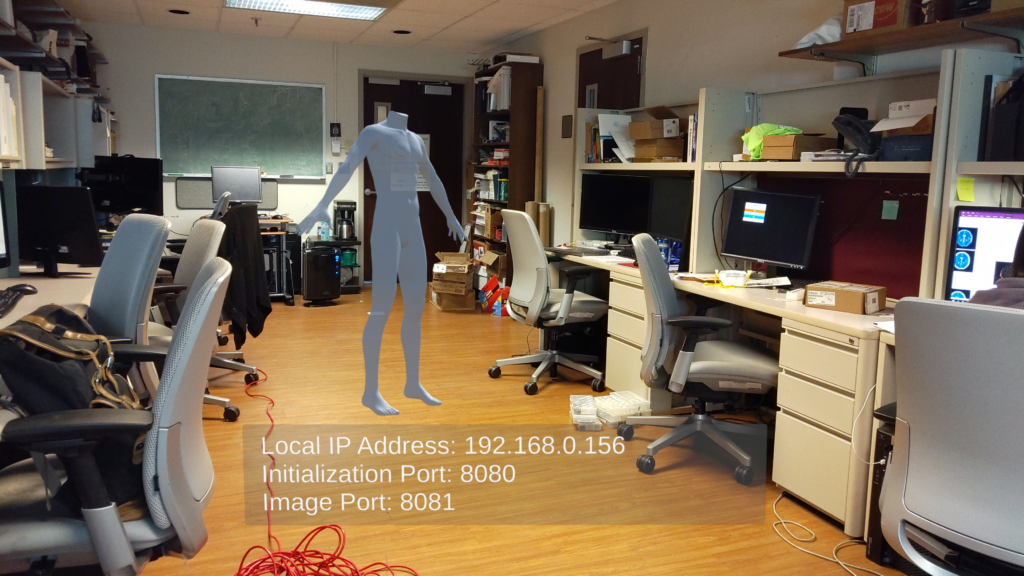
Put on your Hololens 2 and open the “HL2 Update Tests” application from the Start menu. Once the application starts, you should see the below scene:

This is the “Initialization” screen of the application, meaning that it is waiting for a connection from the image reconstruction system. You can position the body as appropriate within this scene – wherever you place the body (and in whatever orientation) will determine the position and orientation of the visualized images once the system is running:

You are now ready to set up the Gadgetron reconstruction system to send images to your device.

Gadgetron Docker Configuration

While you can build and run the Gadgetron reconstruction pipeline from source, we encourage you to use the Docker container we’ve prepared as a starting point. If you need to install Docker, see this instructional guide.

Start by pulling the Gadgetron Realtime Cardiac docker image from the public Github Container Registry associated with this project’s repository:

docker pull ghcr.io/cwru-mri/gadgetron-cardiac-radial-grappa:latest

Once the Docker image downloads, you are then able to start the reconstruction system using:

docker run -it -p 9002:9002 --gpus all ghcr.io/cwru-mri/gadgetron-cardiac-radial-grappa:latest

Breaking this down:

  • docker run || starts a docker container
  • -it || start the container interactively so we can see the logs in realtime
  • -p 9002:9002 || maps the Gadgetron port (9002) to the host machines port so that the system can be accessed outside of the container
  • –gpus all || allows the container to access the GPUs installed on your machine. (this project requires a CUDA-capable NVIDIA GPU)
  • ghcr.io/cwru-mri/gadgetron-cardiac-radial-grappa:latest || this is the image:tag pair that you are using as the source for your container

Once you run the above command, you will see the following status updates indicating that the Gadgetron and the supervisor daemons have successfully started:

You can now send data to the Gadgetron instance for reconstruction – however, the version of the Gadgetron ISMRM-RD client must match the version used within the Docker container. You can either install the appropriate version of Gadgetron and the necessary dependencies within a conda environment on your local machine, or simply use another instance of the same Docker image as your reconstruction runner.

Example Reconstruction

To test our system, we’ll be using a second copy of the same Docker image above, since this keeps version control a bit more simple (and is portable to any other machine too).

For the below exercise, I’ll be using the two datasets below as a test. Feel free to download them and follow along:

Calibration.h5

Undersampled.h5

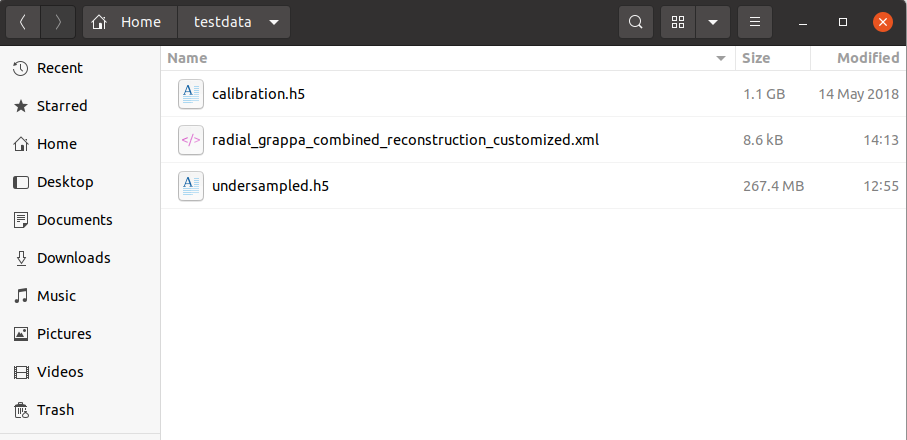
In order to use a Docker container as a reconstruction data client, we need to map the location of the source data into the container. For example, if my desired datasets were located at “/home/andrew/testdata”, we’d use the following command to start a container:

docker run -it -v /home/andrew/testdata:/tmp/testdata ghcr.io/cwru-mri/gadgetron-cardiac-radial-grappa:latest /bin/bash

Breaking down the new parts:

  • -v || maps a location on the local filesystem (/home/andrew/testdata) to a location within the new container (/tmp/testdata)
  • /bin/bash || by putting the bash command at the end of the docker run command, we can start a bash shell instead of another Gadgetron instance

Running the above (in a new terminal, not the one running your Gadgetron instance) and browsing to /tmp/testdata will show that this command successfully mapped our testdata folder into the container:

We can now use this client instance to start the image reconstruction process.

First, we need to run the “calibration” data and reconstruction pipeline in order to generate the necessary GRAPPA calibration files for the undersampled reconstruction pipeline:

gadgetron_ismrmrd_client -a 192.168.0.105 -p 9002 -f /tmp/testdata/calibration.h5 -c radial_grappa_combined_calibration.xml

Note that I’m including the IP address of my computer in the gadgetron_ismrmrd_client command to simulate the scenario where the Docker host isn’t your local machine. You can find your IP address by opening a new terminal and typing “ip address”. Look for the entry labeled “eth0” – your ip address should have the format xx.xx.xx.xx, followed by a subnet mask (“/24”).

With the weights generated, we can now run the undersampled data through its reconstruction pipeline (but don’t run this command yet):

gadgetron_ismrmrd_client -a 192.168.0.105 -p 9002 -f /tmp/testdata/undersampled.h5 -c radial_grappa_combined_reconstruction.xml

The reconstruction pipeline doesn’t know where to send the resulting data – we haven’t told it the IP address and port information of the Hololens 2 application we set up earlier. The easiest way to do so is by creating a copy of the “radial_grappa_combined_reconstruction.xml” pipeline configuration file and storing it next to your datasets. This way, you are able to directly edit the parameters of the pipeline, as well as the Hololens IP addresses, without needing to generate new Docker images. The file can be downloaded here – save it to the same testdata directory where our datasets are located, rename it to indicate it’s a customized version of the configuration file, then open it in a text editor:

I’ve isolated the section we care about in the block below. The bolded values below control the connection to the Hololens 2 device. As we saw during Hololens setup above, my device is available at a local IP of 192.168.0.156, with ports of 8080 and 8081, so I’ve filled in the appropriate values:

{beginning of file}
.....
.....
<gadget>
    <name>ImageFinishExportHoloLensGadget</name>
    <dll>gadgetron_finish_client_lib</dll>
    <classname>ImageFinishExportHoloLensGadget</classname>
    <property>
        <name>perform_timing</name>
        <value>false</value>
    </property>  
    <property>
        <name>verbose</name>
        <value>false</value>
    </property>
    <property>
        <name>hololens_ip</name>
        <value>192.168.0.156</value>
    </property>
    <property>
        <name>hololens_init_port</name>
        <value>8080</value></property>
    <property>
        <name>hololens_image_port</name>
        <value>8081</value>
    </property>
</gadget>
.....
.....
{end of file}

Once we make the necessary changes, we’ll be able to use the following command to run the reconstruction pipeline again, this time using our externally-provided configuration file (note the CAPITAL -C flag instead of lowercase this time):

gadgetron_ismrmrd_client -a 192.168.0.105 -p 9002 -f /tmp/testdata/undersampled.h5 -C /tmp/testdata/radial_grappa_reconstuction_customized.xml

Open up your Hololens 2 application, the run the above command. You should now see the reconstruction process run, and images should begin appearing:

You can manipulate, scale, window, and level the datasets using your hands as the controllers. Note that window/level controls are only applied as new data comes in – you can always hit run again on your reconstruction to see the data playback again.

If you want a single-line command for running the docker client reconstruction process, you can combine the commands above by replacing /bin/bash with the actual reconstruction client command as folllows:

docker run -it -v /home/andrew/testdata:/tmp/testdata \
ghcr.io/cwru-mri/gadgetron-cardiac-radial-grappa:latest \
gadgetron_ismrmrd_client \
-a 192.168.0.105 -p 9002 \
-f /tmp/testdata/undersampled.h5 \
-C /tmp/testdata/radial_grappa_reconstuction_customized.xml

Feel free to customize the source and target mount points as you see fit. You should now be able to take any of the Cardiac Radial Grappa source datasets and run them through the Gadgetron->Hololens visualization pipeline!

Categories
Public

Using Matlab through Docker

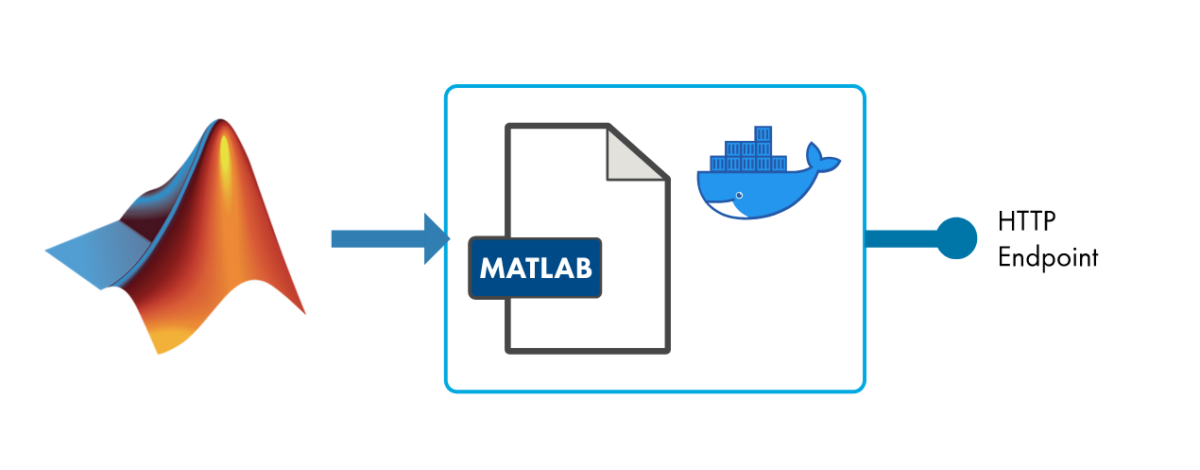
Instead of installing Matlab on your local machine, a better option is to run Matlab within a Docker container. This ensures that you are always starting with a clean environment, and allows you to very easily share your project in a reproducible manner.

The Basics

Running Matlab inside of Docker can be done with a single command:

docker run -it -p 8888:8888 --shm-size=512M mathworks/matlab:r2022a -browser

Breaking the command down:

  • run || starts a new docker container from an image
  • -it || interactive flag, means that the container’s execution will show up in the bash session you start the container from
  • -p 8888:8888 || port mapping, maps port 8888 inside the container to the same port on the computer you’re running the container on
  • mathworks/matlaScreenshot from 2022-08-24 12-38-21b:r2022a || the name/tag of the docker image to run
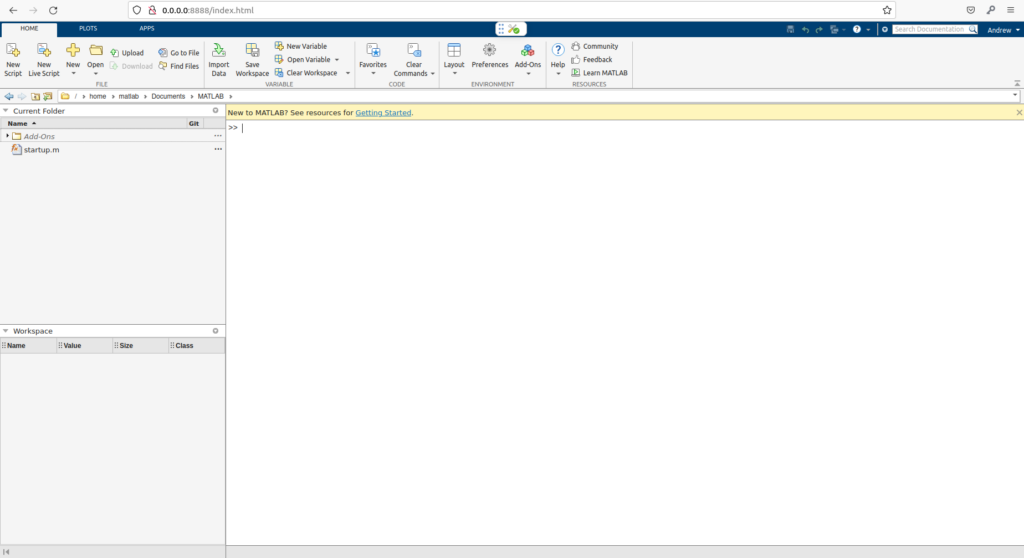
  • -browser || tells Matlab to run an interactive browser session for the GUI, hosted on http://localhost:8888/index.html

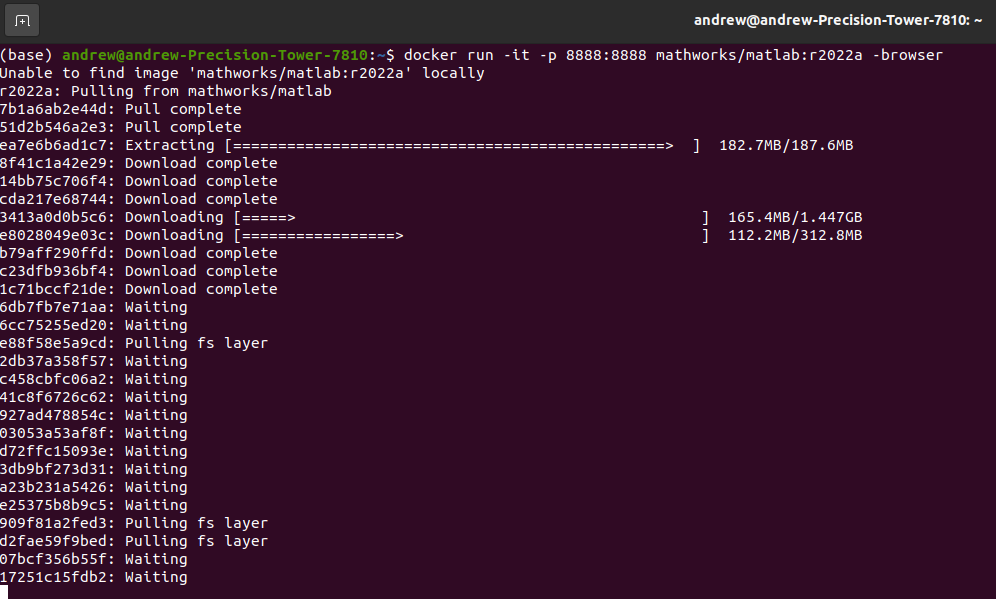
Once you run the above command, you’ll see the following:

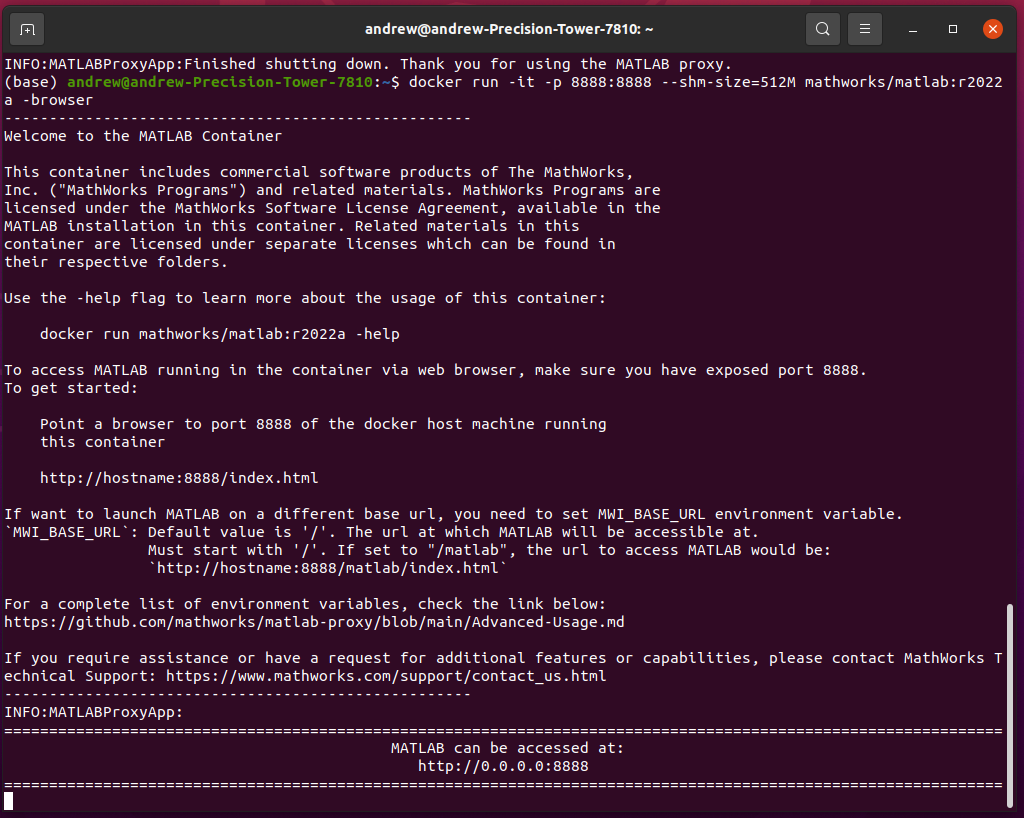
Your computer is now downloading the Matlab Docker image for r2022a. Once the download is finished, the container will start, and you’ll see the following:

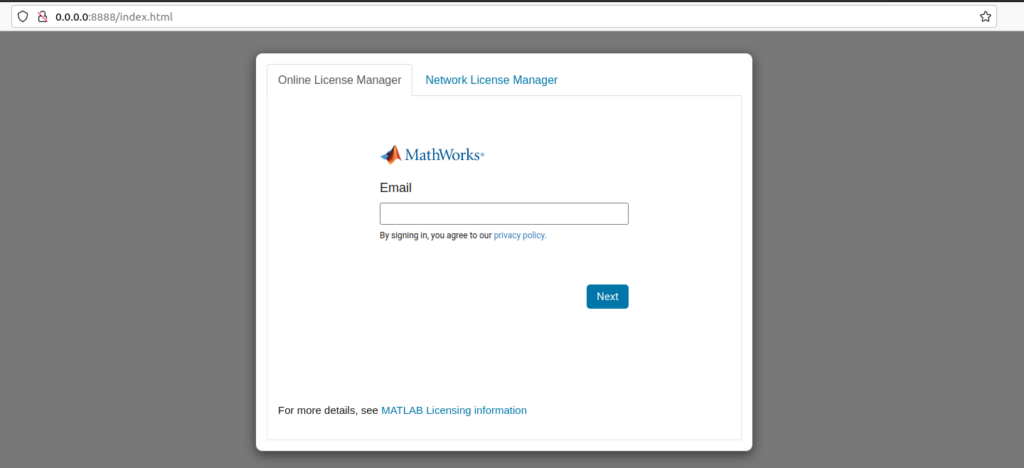
If you type the web address into your browser, you’ll then see:

Log in to your CWRU Matlab account. Once you finish logging in, you should see a Matlab interface within your browser:

You are now running Matlab inside a clean Docker container. Note that anything you make/write inside this container is ONLY saved to the container (for now…. we’ll fix that later in this guide). But feel free to try using the Dockerized Matlab appliance now!

Changing Docker Images

The Docker image we used above (mathworks/matlab:r2022a) is a basic, clean installation of Matlab. However, for a lot of the work done in lab, we likely need some other toolboxes. Instead of using this as the base image, we can instead use Mathworks’ “Deep Learning” docker image as a base.

Doing so is as easy as changing the image in the run command to:

docker run -it -p 8888:8888 --shm-size=512M mathworks/matlab-deep-learning:r2022a -browser

Your computer will begin downloading the additional toolkit layers for the Docker image. Once it’s done, you’ll be all set to use the larger, more capable image instead.

Using GPUs

Now that we’ve changed to the Deep Learning image, we may also want to add support for the GPUs installed in many of our computers. Doing so is as easy as adding a flag to the run command:

docker run --gpus all -it -p 8888:8888 --shm-size=512M mathworks/matlab-deep-learning:r2022a -browser

This will forward the GPUs installed in your machine to the Docker container for use by Matlab.

Mounting Existing Code/Directories into Container

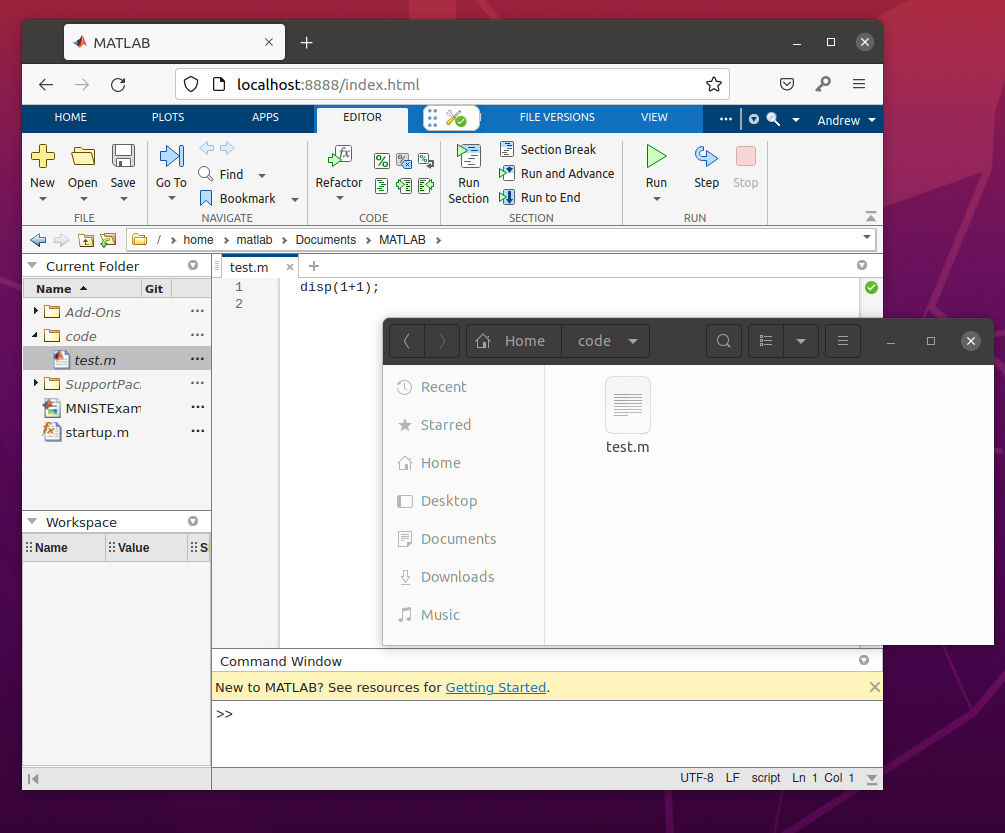
Most likely, you already have code that you’d like to open in Matlab. In order to do so, we need to mount the folder containing that code as a volume inside the Matlab container. In the below example, I’m mounting a directory called “code” that’s inside my user folder on the host machine to the default MATLAB directory inside the container:

docker run \
-v /home/andrew/code:/home/matlab/Documents/MATLAB/code \
--gpus all -it -p 8888:8888 --shm-size=512M mathworks/matlab-deep-learning:r2022a -browser

As you can see, once Matlab starts up, the “code” folder and it’s contents from my local computer are now available within the running Matlab instance:

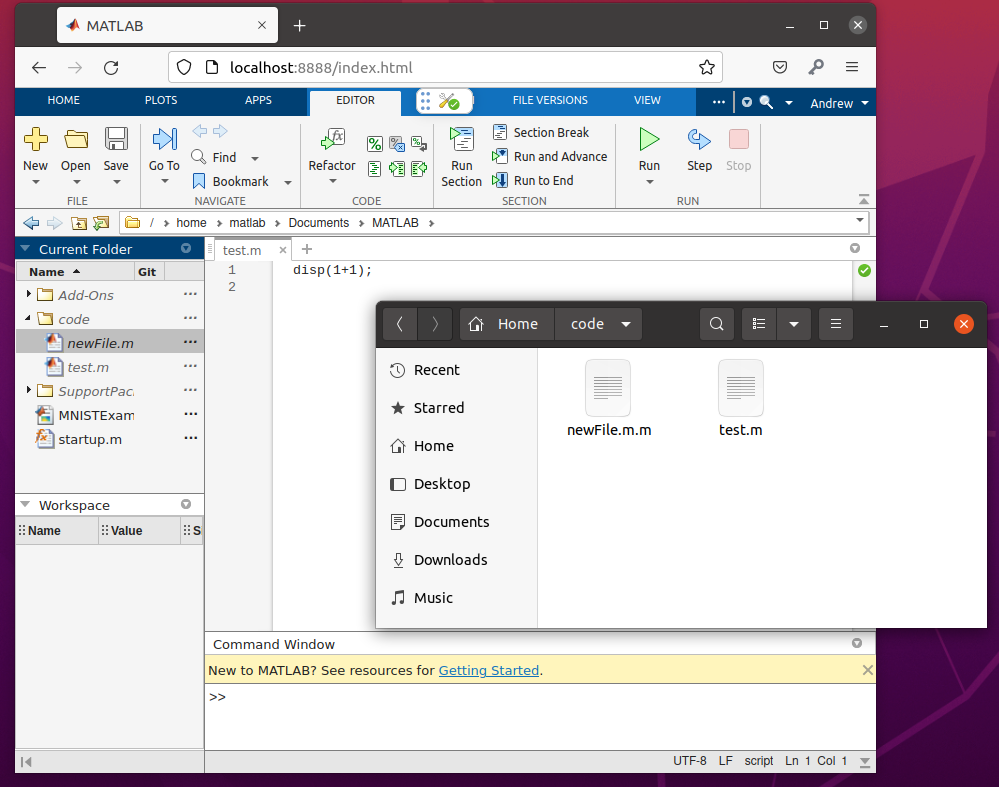
Just to test the functionality, try making a file inside the browser Matlab instance called “newFile.m”. You’ll see it show up in the local filesystem too:

Now, files you make will persist after you close the Matlab Docker container, as long as those changes are inside of a volume you have mapped to the container during startup.

Making and Sharing a Docker Image

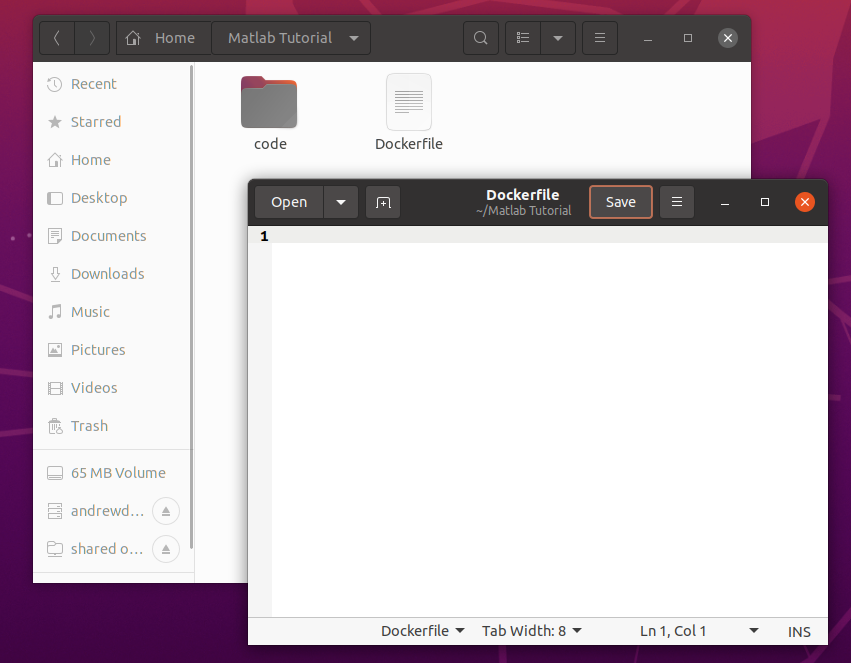
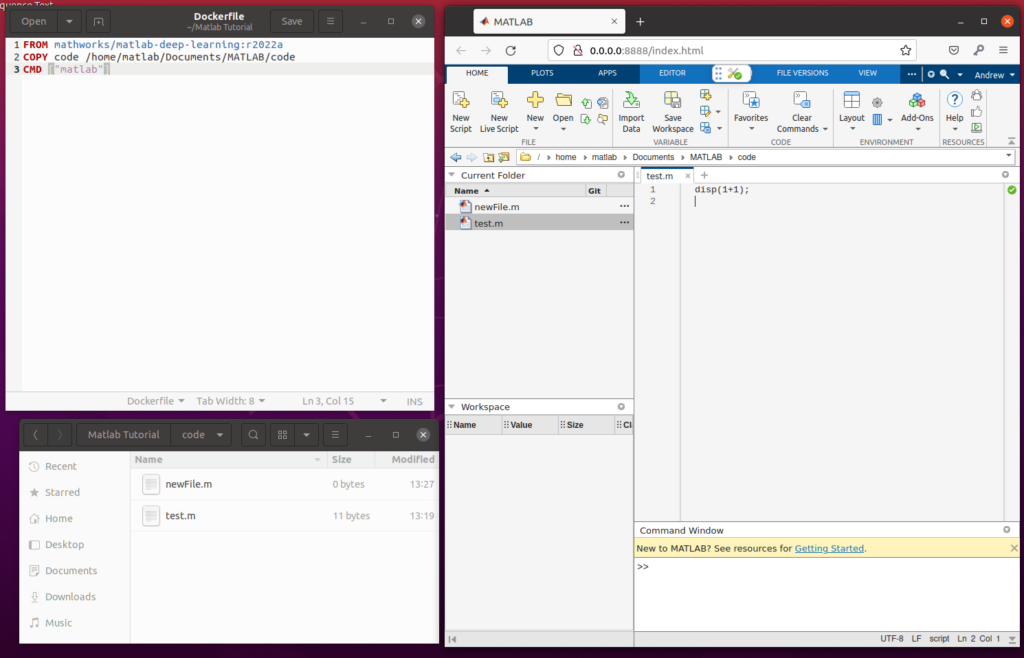
If you have a folder with some Matlab code inside it, this can also be used to quickly create a custom Matlab docker image that includes your code. We can do this with a very simple Dockerfile. Make a new, empty text file named “Dockerfile” in the directory above where your code lives:

Inside the Dockerfile, we’ll have three main lines:

FROM mathworks/matlab-deep-learning:r2022a
COPY code /home/matlab/Documents/MATLAB/code
CMD ["matlab"]

Breaking this down:

  • FROM || Specifies the source Docker image to use as the base for your new, custom image
  • COPY || Copies a folder or file from a location “code” to a location inside the new Docker image (/home/matlab/Documents/MATLAB/code)
  • CMD || Specifies the command to run when the Docker container first starts – in this case, Matlab

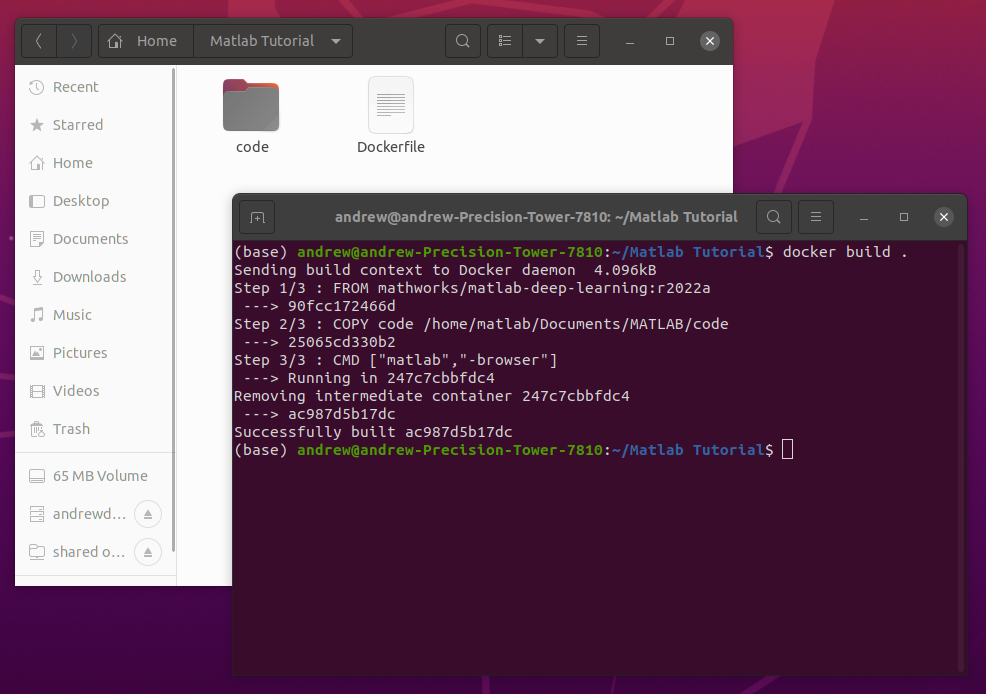
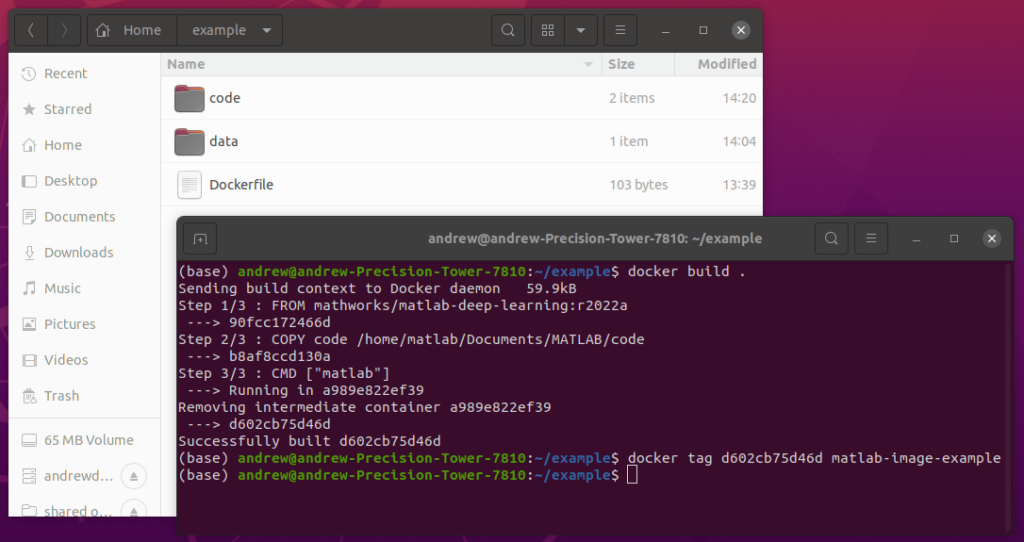
In order to build this new Docker image, we”ll open the root directory in the terminal and enter:

docker build .

Once the process completes, you’ll see:

You now have a custom Docker image containing your code, as well as a full installation of Matlab. To make things easier to keep track of, lets tag that new image with a human-readable name using:

docker tag ac987d5b17dc matlab-tutorial

You’ll need to replace the first part of the tag command with the hash given after the build process completed (after “Successfully built” in the screenshot above). Now that our new image is tagged, and we can easily run it with:

docker run -it -p 8888:8888 --shm-size=512M matlab-tutorial -browser

Once Matlab start up, you can see that our source code is included inside the image itself:

Importantly for the sake of reproducibility, the code inside this “built” version of the Docker container/image is now “read only”, unlike when you mounted the code folder as a volume. This means that anyone, anywhere who opens the Docker image you just built can run the exact same code you ran, and can’t edit it without making a copy inside the container. This is now a runnable, shareable, immutable version of your code.

If you want to see how to publish this Docker image to a Container Registry so others can use it, see this post.

The buildable sample we just put together can be downloaded below:

Data Processing Example

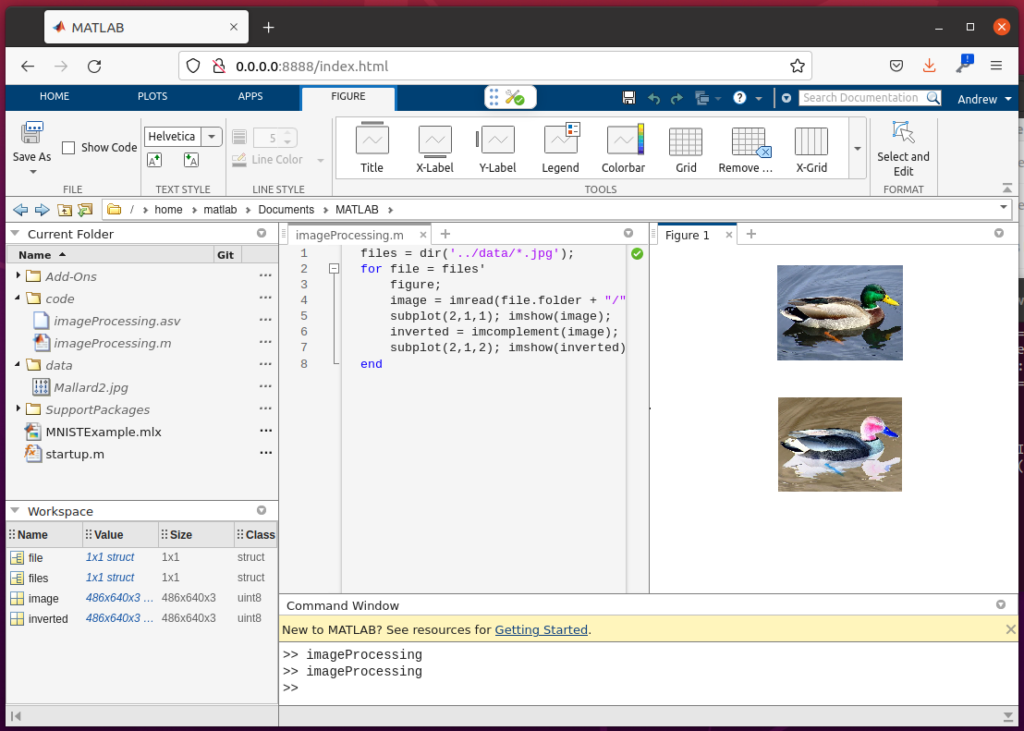
Lets image that we need to process a specific dataset, at a specific file location, with an existing set of Matlab code. In this case, we’ll start with some simple code that loads an image from file, displays it, inverts the colors, and displays the result as well.

We’ll start our development process by starting a docker container that maps a “code” location and a “data” location into the Matlab instance:

docker run \
-v /home/andrew/example/code:/home/matlab/Documents/MATLAB/code \
-v /home/andrew/example/data:/home/matlab/Documents/MATLAB/data \
-it -p 8888:8888 --shm-size=512M mathworks/matlab-deep-learning:r2022a -browser

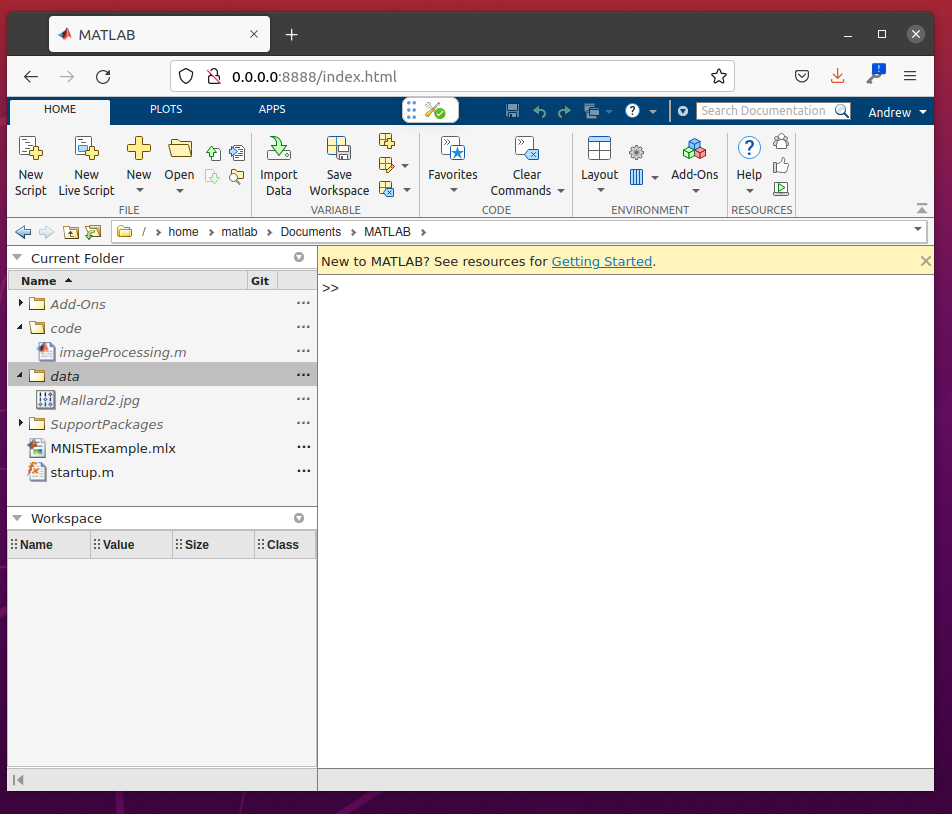
As you can see, both of the folders, as well as their contents, are now mapped into the running Matlab container:

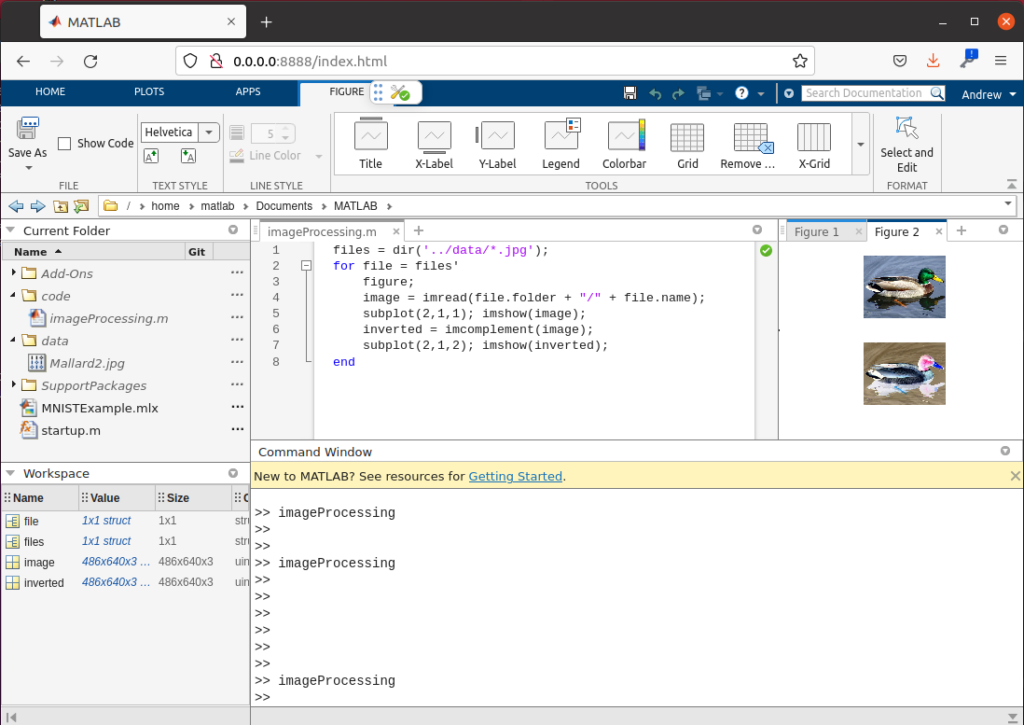
Now, we can start developing our data processing code. Anything we save while the code and data locations are mapped will be saved to the host machine as well. Here’s our basic code, and the results:

Now, lets build a docker container based on this project. We’ll use the same Dockerfile we wrote above:

FROM mathworks/matlab-deep-learning:r2022a
COPY code /home/matlab/Documents/MATLAB/code
CMD ["matlab"]

Notice that we’re not copying the “data” directory over to the Docker image, since there’s no reason to copy our datasets into the shared image. We’ll add this Dockerfile to the parent directory and run a build, then tag the result as matlab-image-example:

Now that the container is built, lets test it using the same dataset we used before. Since the data isn’t inside the container image (as we mentioned above), we’ll need to mount the data directory into the right location that we used in our code above:

docker run -v /home/andrew/example/data:/home/matlab/Documents/MATLAB/data -it -p 8888:8888 --shm-size=512M matlab-image-example -browser

As we can see, the Matlab instance that opened has the “code” in the proper code directory, as well as the same dataset inside of the data directory. However, the code is now “read-only”, as we can see from it being greyed out:

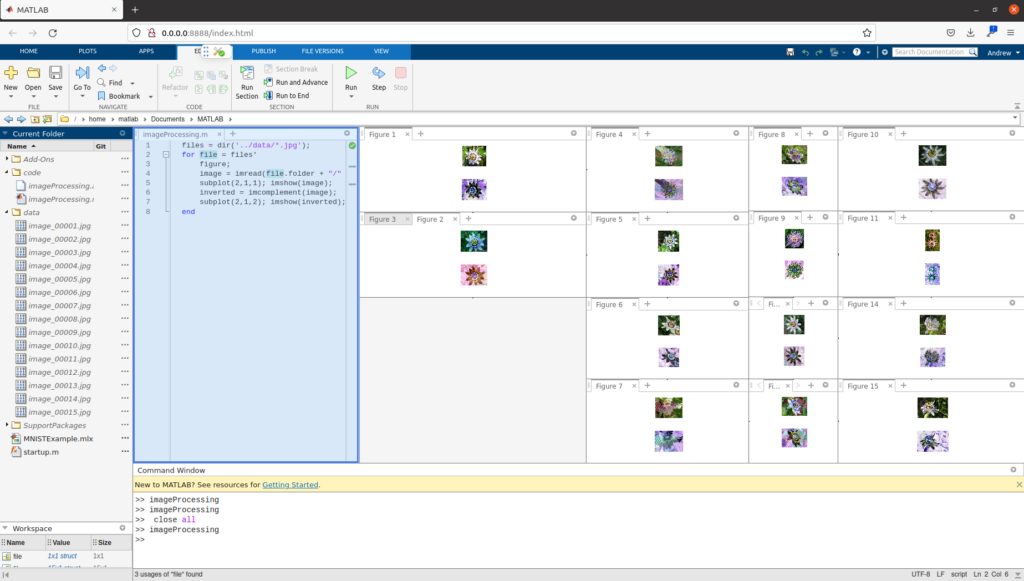
We now have a working data processing Matlab Docker container! Lets try testing with a different data set of 15 images that I downloaded from the web. Instead of moving this to the “data” folder we used for development, I can just start the Docker container directly, pointing to the folder in my downloads:

docker run -v /home/andrew/Downloads/flowers:/home/matlab/Documents/MATLAB/data -it -p 8888:8888 --shm-size=512M matlab-image-example -browser

Once Matlab opens, we’ll see that the new flowers dataset is mapped correctly into the data directory. Running the code now outputs 15 figures, one for each flower:

The source folders for the above example are included below:

You can continue extending this example with more mount folders (for example, a folder for results?), by allowing you to run the commands necessary from a batch terminal, and more. Additional documentation is available from Mathworks directly, for some of these more advanced use cases.

Categories
Internal

Installing Docker

Sorry, but you do not have permission to view this content.
Categories
Internal

Building and Using Gadgetron with Kubernetes for Azure

Sorry, but you do not have permission to view this content.
Categories
Internal

Creating MARS for IDEA in Azure

Sorry, but you do not have permission to view this content.